Remove a Photo Background: Transparent PNG vs White Background
Remove a photo background, choose transparent PNG or white JPEG, and check product edges, export quality and the actual downloaded file.
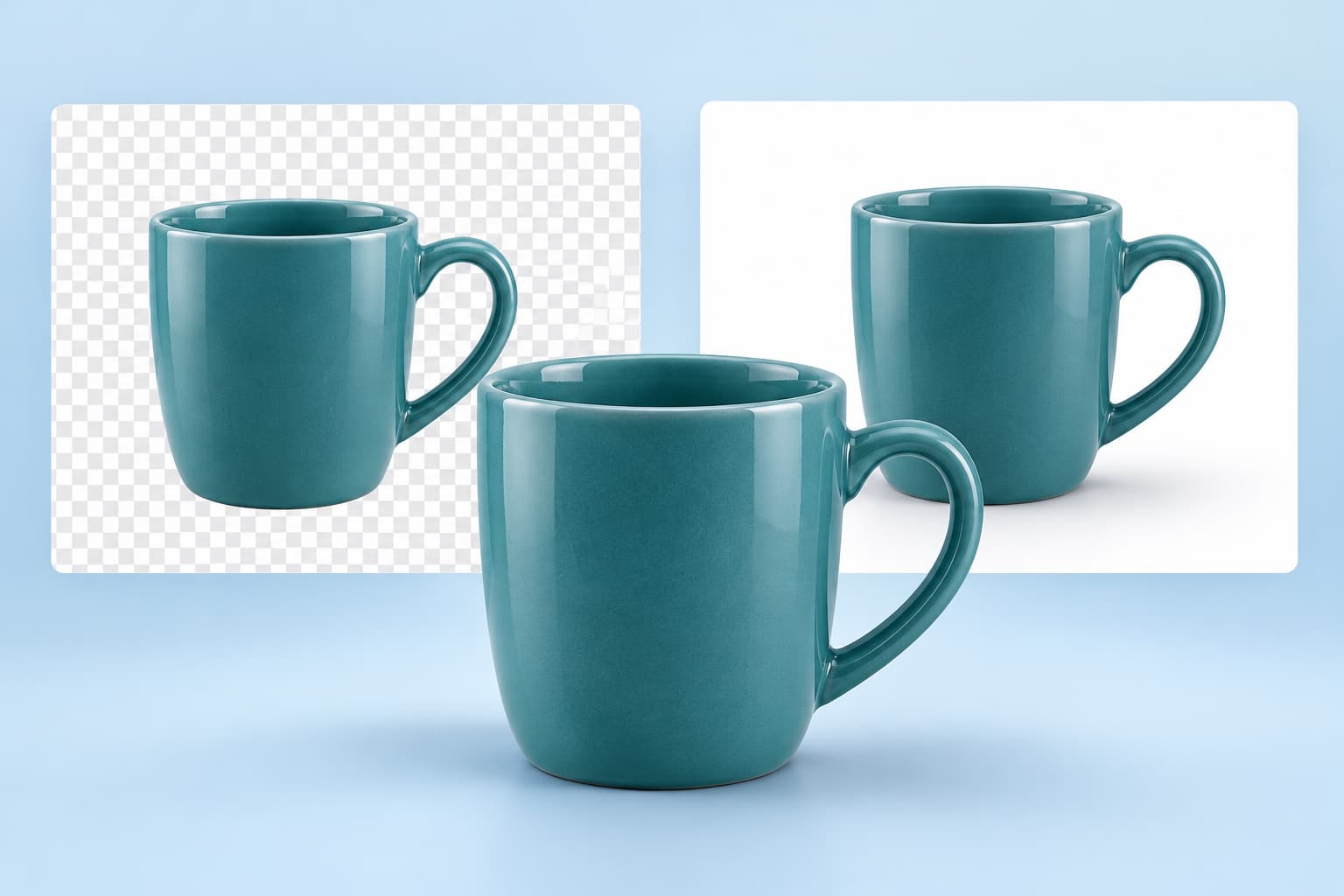
Choose the final background before editing
A transparent cutout and a product photograph on white are different deliverables. Transparency lets another design show through the empty area. White is a visible color already included in the image. Both can look identical against a white webpage, which is why this mistake often survives until the file reaches a colored slide or storefront.
For reusable artwork, keep a transparent master. For a finished catalog photograph, add the intended backdrop and save a separate copy. Adobe’s background-removal documentation describes downloading a PNG cutout. That is a useful example of the output to look for; it does not mean every editor exports the same file.
- Transparent PNG: choose this when the subject must sit over multiple backgrounds.
- White-background JPEG: choose this when the image should contain its own white canvas.
- Editable project: keep this when someone needs to revise the mask or shadows later.
Remove the background in six steps
- Start with the original full-resolution photo, rather than a screenshot or messaging thumbnail.
- Duplicate the source and identify the required output dimensions and background.
- Use subject selection or automatic background removal to create a first mask.
- Inspect the outline, holes and partially transparent areas at full size.
- Export a transparent PNG, or add a deliberate background before saving a finished image.
- Reopen the download and test it in the actual page, presentation or product-image slot.
Use our iPhone background-removal guide for the device workflow. This article focuses on the file you hand over afterward. A successful edit includes both a convincing subject and the correct export.
Remove a white background without erasing the product
A white shirt, pale ceramic mug or silver accessory can merge with a white backdrop. Erasing everything near white may cut holes in the object. Prefer a mask that separates the subject from its surroundings, then use restore and erase controls to correct the boundary. Keep the source visible for comparison.
Check the handle opening of a mug, gaps between fingers, lace, hair and spaces between jewelry links. These are background areas enclosed by the subject. Also inspect the opposite problem: reflections and highlights on the product belong to the object even when they resemble the original background.
If the object’s edge is genuinely missing in an overexposed source, software cannot measure its original shape from that file. Reshoot against a contrasting neutral surface when possible. Manual masking can follow a visible edge; generating a plausible edge is a different kind of edit.
Check edges against three backgrounds
Preview the cutout over white, dark gray and a saturated color. White reveals dark outlines. Dark gray reveals pale halos. A strong color makes gaps and semitransparent contamination easier to spot. Inspect at normal display size as well as magnified: a perfect-looking zoom view can still feel unnatural in the final composition.
- Pale halo: refine contaminated edge pixels rather than shrinking the entire subject.
- Missing detail: restore the affected area from the original mask.
- Jagged boundary: use restrained edge smoothing; excessive feathering creates a glow.
- Floating object: decide whether a believable contact shadow belongs in the finished scene.
Transparent glass and translucent fabric need particular care. A simple cutout may retain colors from the old scene inside the object. For an important catalog image, a controlled reshoot or manual compositing can be a better next step than repeated automatic removal.
Why does the saved image still have a background?
First check the file format. JPEG does not support transparency; Adobe’s JPEG and PNG comparison explains the difference. Renaming a JPEG to end in .png does not convert its pixels or create an alpha channel. Use the editor’s export control.
Next, place the file over a colored layer. A photo viewer may display transparent areas as white, so appearance in that viewer alone is inconclusive. If checkerboard squares remain visible on the colored layer, they are part of the image rather than a transparency indicator. Return to the editable source and export again.
Finally, check whether the destination converts uploads. A platform may flatten a transparent upload, create a thumbnail or use its own background. Keep your original cutout and compare the uploaded version with the local file before repeating the edit.
Product photographs: preserve what customers will receive
Removing clutter should not change a product’s dimensions, color, material or label. Compare the edited object with the source, especially lettering, seams and small accessories. A generated lifestyle scene can alter these details. Our product-background guide explains how to review a generated setting while keeping the item recognizable.
Check the current image requirements of the specific marketplace and image slot. A main listing image and a secondary lifestyle image can have different rules. A white background alone does not establish compliance, and there is no single export setting that guarantees acceptance across every store.
Make one useful export before processing a batch
Test a difficult representative photo first. Confirm pixel dimensions, transparency, edge quality and download conditions before processing the rest. Record which file is the untouched original, which is the reusable cutout and which is the finished composition. This makes later changes much easier.
If your next task is a creative background replacement, explore FakeIt’s photo-editing workflows. If the deliverable requires a precise transparent product cutout, verify that your chosen editor provides that export instead of assuming a background-changing feature includes it.
Frequently asked questions
How do I remove a background and keep it transparent?
Remove the background with a selection or mask, then export a PNG with transparency enabled. Place the downloaded file over a colored background to confirm that the empty area is transparent rather than painted white.
Why does my background turn white after saving?
A JPEG cannot preserve transparency. Export a transparent PNG instead, or deliberately add a white layer if the destination needs a white-background product photograph. A white preview alone does not prove that a PNG has lost transparency.
Can I remove a white background without removing a white product?
Yes, but the selection must follow the object rather than erase every white pixel. Use an object mask, inspect pale edges and openings, and restore any product detail the automatic selection removed.
Does a checkerboard mean my image is transparent?
A checkerboard inside an editor usually indicates transparency. It can also be baked into a downloaded image. Test the actual download over a solid color: the squares must disappear wherever the background is empty.
Is background removal the same as AI background generation?
No. Removal isolates an existing subject. Generation creates a new scene and can change the subject as well. Use masking when preserving product shape, labels and color is essential.
Can I remove a background for free without signing up?
Some tools offer limited access, but account requirements, export resolution and free allowances change. Check the current download conditions before uploading a full batch. A free preview does not establish that the final export is free.