How to Take Professional Headshots at Home With a Phone
Take a work headshot at home with window light and a phone. Follow a room setup, posing checklist and final crop check before editing.
Start with the job the headshot needs to do
A work headshot should help someone recognize you and understand the context in which you work. A company directory, speaker biography and creative portfolio may call for different clothing and crops. Ask for the destination’s image specifications before shooting, especially for a team page with an established visual style.
You can make a useful portrait with a phone and existing household equipment. A stable support, soft light and an uncluttered background matter more than buying several accessories at once. The setup below is a practical starting point to adjust in your room, rather than a promise that every room or camera will produce identical results.
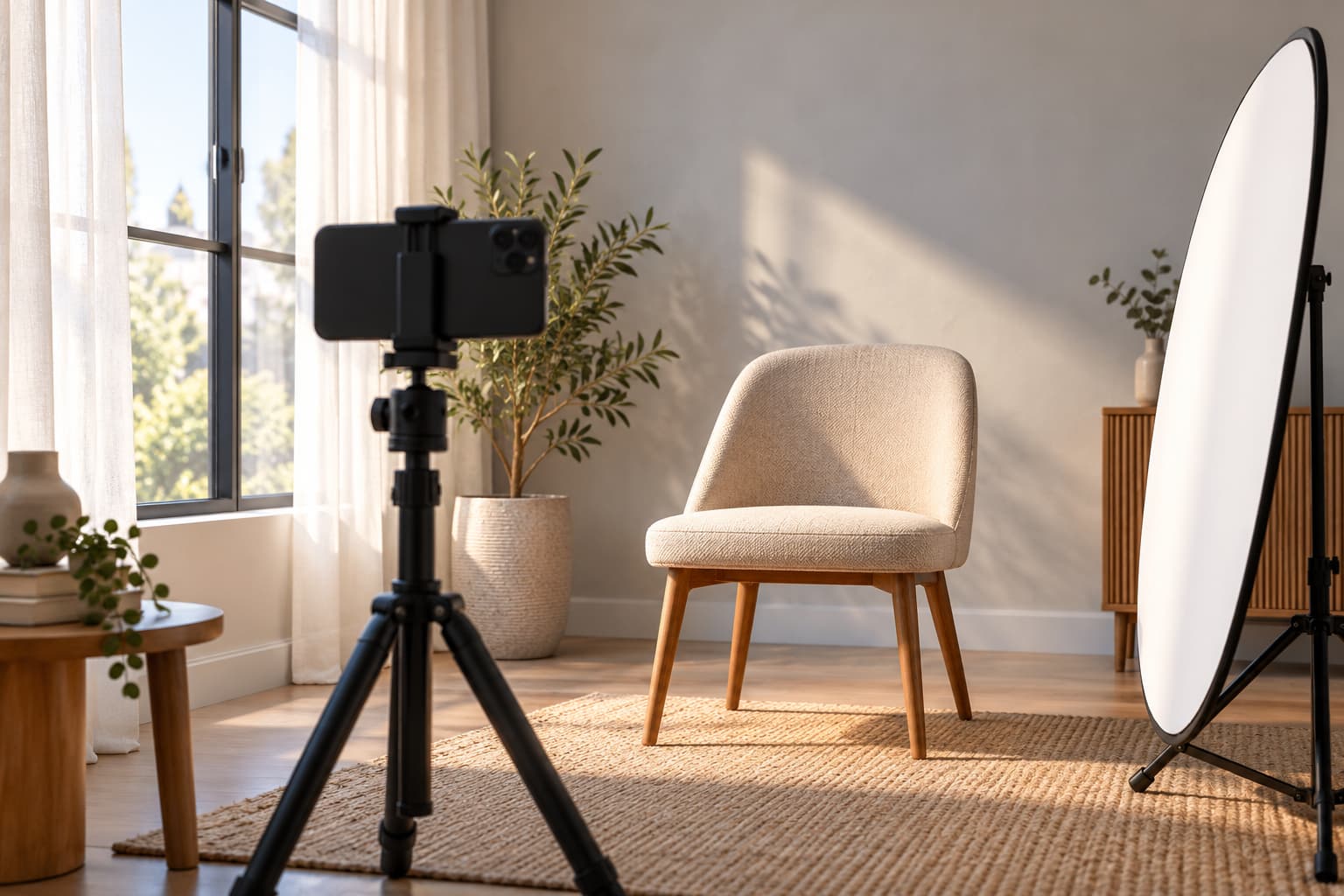
Set up a small room for soft, even light
Find a window with indirect daylight. Sit or stand facing it, then rotate slightly until both eyes remain visible and the face has gentle shape. If direct sunlight draws a hard line across your face, move out of that patch or use a sheer curtain to soften it. Avoid placing the bright window directly behind your head.
Switch off nearby warm lamps if they create orange areas beside cooler daylight. Nikon’s window-light portrait advice supports using window light without overhead lighting. You do not need to copy a dramatic portrait’s deep shadows for a company profile; use the principle to control the light sources.
Leave some distance between you and the wall if the room allows it. This can make wall shadows less distracting. A white board or pale wall opposite the window can reflect light into the darker side of your face. Check whether it helps before introducing another lamp.
Position the phone before worrying about the pose
- Clean the camera lens and support the phone securely at about eye level.
- Use the rear camera with a helper, timer or remote when practical.
- Move the camera back enough to avoid a close, wide-angle selfie perspective.
- Frame from roughly the chest upward, leaving space above and beside your head.
- Focus on the eyes and take a test photograph before the full session.
- Inspect that saved test at full size for movement, focus and background distractions.
If your phone offers multiple lenses, compare them in the actual room. A longer lens can help framing when you have enough distance and light, but heavy digital zoom can reduce useful detail. Moving the camera and checking the result is more dependable than following one zoom setting on every phone.
Nikon’s portrait guidance emphasizes lens choice and sharp eyes. Its camera settings are not universal smartphone instructions, but those two priorities carry over well.
Choose clothing, background and expression together
Wear something appropriate for the audience that will see the portrait. Try a solid top that separates clearly from the wall. Fine patterns, reflective fabrics and large logos may attract attention away from the face. A white shirt can work against a darker background; a dark jacket can work against a pale one. Test rather than treating any color as automatically wrong.
Keep your shoulders relaxed and turn your torso a little if a straight-on pose feels stiff. Bring your eyes back to the lens. Take short sets with small changes in expression, then pause to review. An easy, familiar expression is more useful than a smile held until it looks strained.
Georgia Tech’s photographer recommends even light and checking the background in its guide to taking your own professional headshot. Use those checks before spending time on retouching.
Indoor office photography: fix these common problems
- Dark eye sockets: move away from a light positioned directly overhead and test a softer source in front.
- Glare on glasses: adjust your angle or the light position while keeping the eyes visible.
- Orange and blue skin patches: simplify the mix of daylight and artificial light.
- Clutter beside your head: move the camera or clear the visible background.
- Soft eyes: improve light, stabilize the phone and confirm focus before taking another set.
- Artificial blur around hair: compare portrait mode with the normal camera result.
For staff photos, mark the camera and chair positions, keep the same background and aim for similar framing. Daylight can change through the session, so check each person’s image rather than assuming the first setup remains correct. A controlled lighting setup or photographer may be easier for a large team.
Edit the photograph while keeping yourself recognizable
Begin with restrained exposure, white-balance and crop adjustments. Avoid aggressive skin smoothing that removes natural texture. Keep permanent features, glasses and facial proportions recognizable. If the source is badly blurred, taking another photo is often more reliable than trying to make an edit infer your features.
Our AI headshot from a selfie guide covers the optional generation step. An AI variation may change wardrobe, lighting or the setting, so compare it side by side with your real photograph. Follow the receiving organization’s policy; an employment profile is a different use from an identity document.
Check the crop where the headshot will appear
Keep a larger master and create a separate delivery copy. Test the final square or circular crop so it does not cut off the top of your head or make your face too small. Inspect at the actual small display size as well as at full resolution. A photo that looks excellent in a large preview may lose its expression as a tiny avatar.
Confirm the destination’s file type, dimensions and upload limit. Share the original export rather than a screenshot of your camera roll. Before uploading, check the background, eye sharpness, skin color, clothing and likeness one final time.
Turn your selfie into a professional photo with FakeIt
You do not need a complete home studio to try another look. In the FakeIt mobile app, upload a clear selfie and choose a professional headshot style to generate a work-ready portrait. Start with the window-light photo you took above so your face is clearly visible.
- Open FakeIt on your iPhone and choose the professional headshot style.
- Upload your selfie and generate a professional photo.
- Compare the result with your original, check your likeness and the profile crop, then save the version you want to use.
Download FakeIt for iPhone and turn your selfie into a professional headshot. Keep your original photo too, and follow your organization’s rules for AI-assisted profile images.
Frequently asked questions
Can you take a professional headshot yourself?
You can take a usable work-profile headshot with a phone, stable support, soft window light and a plain background. Check sharpness, skin color and the final profile crop before uploading. A photographer remains useful for directed sessions and coordinated team portraits.
How do I take a professional headshot at home with an iPhone?
Clean the lens, place the phone at eye level, use its rear camera with a timer or a helper, and face soft window light. Leave space around your head and shoulders, focus on the eyes, and inspect the saved file rather than only the camera preview.
What colors should I avoid wearing for a headshot?
Avoid colors that disappear into your background or reflect strongly onto your face. Fine stripes, large logos and very shiny fabrics can distract. Test your actual outfit under the chosen light; there is no universally forbidden clothing color.
Should I use portrait mode for a work headshot?
Try both normal and portrait mode. Portrait mode can separate you from a busy room, but inspect hair, glasses and ears for artificial blur. Use the normal photograph if the depth effect damages those edges.
Can AI turn my home photo into a professional headshot?
An AI tool can create a different background, wardrobe or lighting treatment from a source portrait. Review the result against the original for facial shape, age, glasses and other identifying features, and follow the receiving organization’s image rules.
Do I need to buy a ring light?
Start with a window and a stable phone position. If daylight is unavailable or inconsistent, a diffused LED light can help. Test light direction and reflections before buying extra equipment; the most expensive setup is not automatically the most suitable.